
improved
All Plans
Recycle Bin: Restore Team
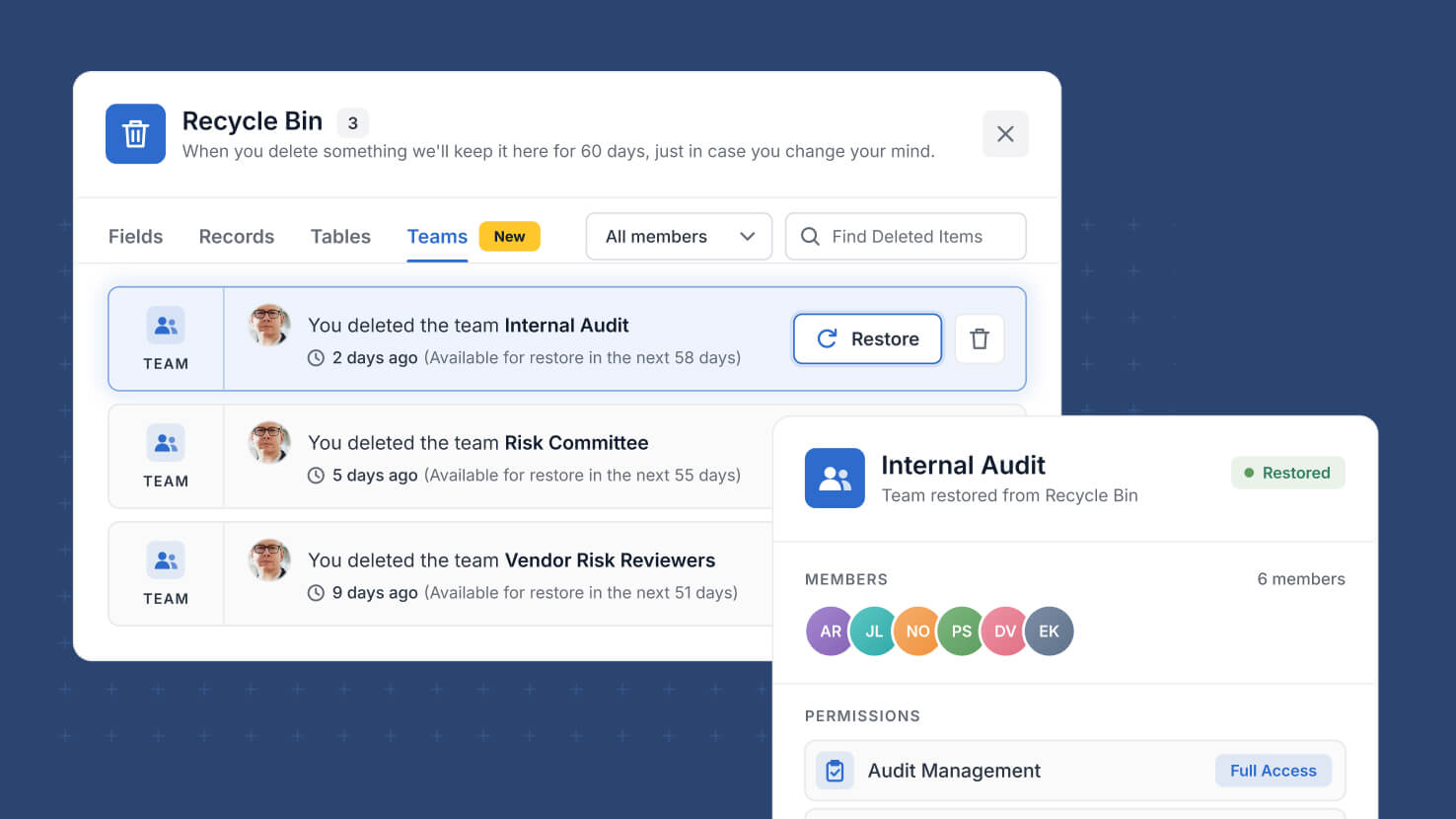
Deleting a team used to be final, which made the safe move leaving unused teams inactive rather than removing them. Deleted teams now go to the Recycle Bin, where an Administrator can restore one.
Key Highlights
- Teams Are Recoverable: A deleted team now moves to the Recycle Bin instead of disappearing, so an accidental delete is no longer permanent.
- Administrator Restore: Members with the Administrator role restore a deleted team from the Recycle Bin, alongside the other items collected there.
- Membership Comes Back: Restoring a team returns it with its members, so you are not rebuilding the roster by hand.
- Cleaner Team Lists: With deletion reversible, you can remove teams you no longer use instead of parking them as inactive to stay safe.
- Access Reviews: Teams grant permissions, so recovering one that was removed in error keeps an access review from turning into a rebuild.
How It Works
- Delete a team as before, from Workspace Administration, Manage Teams, by opening the team and choosing Delete Team.
- The team moves to the Recycle Bin rather than being removed outright.
- Open the Recycle Bin, find the team among the deleted items, and choose to restore it.
- The restored team reappears in Manage Teams and can be used again wherever teams grant access.
- Setting a team to inactive is still there when you want to keep it in place but stop it granting permissions.
Removing a team is now a reversible action, so tidying up your workspace no longer carries the risk it used to.